You can use a laptop stand without an external keyboard, but raising the built-in keyboard can create an uncomfortable reaching or wrist position during prolonged typing. For sustained desk work, separating the screen from the keyboard and mouse usually gives more freedom to adjust each. Short portable tasks require practical compromises.
Your neck feels better when the laptop is raised, but your shoulders start lifting towards the keyboard. That is the central problem: the screen and keyboard are physically joined, while your eyes and hands may need different positions.
What a stand changes—and what it does not
A stand changes the position and angle of the entire laptop. It cannot independently lower the keys while lifting the display. University of California, Berkeley ergonomics guidance explains this linked screen-and-keyboard trade-off and describes external input devices or a monitor as options for improving flexibility. Read Berkeley’s laptop guidance.
The question is therefore less “Is a stand good?” and more “Can I see and type comfortably in this complete arrangement?” A tall stand that suits watching a presentation may be awkward for writing one.
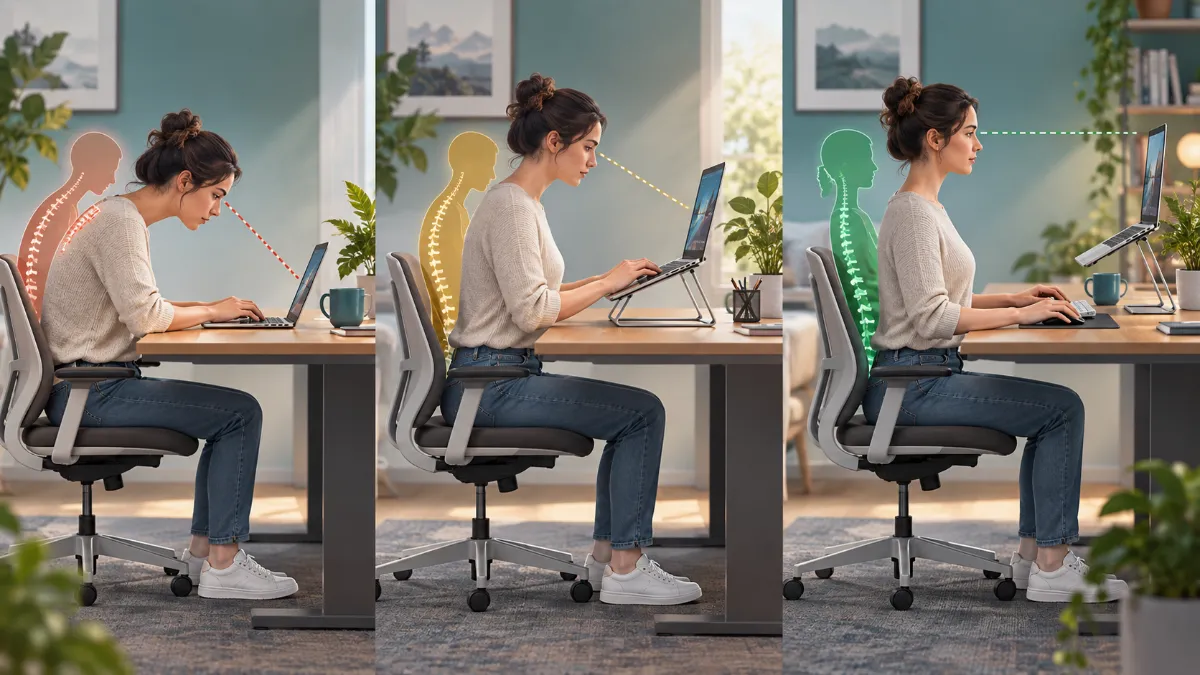
Compare three configurations
| Configuration | Possible benefit | Trade-off to check |
|---|---|---|
| Laptop flat on a desk | Keys remain near desk height | You may bend towards a low screen. Increase text size and review your seating. |
| Laptop raised; typing on its own keyboard | Screen is higher | Check for raised shoulders, reaching and sharply bent wrists. |
| Raised laptop with separate keyboard and mouse | Screen and hands can be positioned independently | Requires desk space and careful placement of every device. |
These illustrations do not document a product trial or establish injury-prevention outcomes. Real fit depends on your body, furniture and tasks.
For a long work session at a desk
- Set the chair and working surface first. Make sure your feet and arms can be supported comfortably.
- Place the main screen where it is easy to see. Increase text size before moving your face closer.
- Keep the input devices reachable. If the screen is raised substantially, use a separate keyboard and mouse at a comfortable level.
- Check the complete task. Try typing, pointing, reading and video calls rather than judging the setup from a still photograph.
- Allow variation. Change position and take breaks; no single posture needs to be held all day.
When separate peripherals are not practical
For a brief task in a small space, avoid lifting the laptop so far that you must reach upwards to type. A modest angle may feel different from a tall stand, but it is not automatically suitable for everyone. Keep sessions manageable, vary activity and reassess if discomfort develops. If this becomes your everyday workstation, consider whether portable peripherals or an external screen would make the arrangement more adaptable.
Use a stable support that does not block the laptop\’s cooling vents. Do not balance the device on an insecure stack or create a cable arrangement that can pull it off the table.
A quick self-check for the setup
When discomfort needs assessment
Persistent neck, shoulder, arm or wrist pain deserves professional assessment. Numbness, weakness, symptoms following an injury or worsening symptoms should not be managed simply by buying a taller stand. An ergonomics or physiotherapy assessment can consider the actual task.
Quick answers
Is a more expensive stand more ergonomic?
Price alone does not determine fit. Stability, adjustment range and compatibility with your task matter more than a label.
Can a chair compensate for the raised keyboard?
Changing seat height also changes foot support and screen position. Assess the whole arrangement. See our ergonomic-chair guide and our guide to screen-related headaches for related considerations.
This article provides general educational information and does not replace an individual examination. No product has been personally tested for this article. About Meerawell